Showing posts with label Tips Recover Password. Show all posts

Lupa Password Administrator Windows

Kalau suatu saat kita lupa user password di windows (xp, vista, 7), itu tidak terlalu masalah, karena masih bisa direset menggunakan account administrator , tetapi kalau yang lupa adalah password administratornya, ini baru masalah karena sudah barang tentu tidak bisa direset menggunakan account user.
Ada cara alternatif untuk mengatasi kalau kita lupa password administrator, sebelum menggunakan jalan terakhir yaitu menginstal ulang windowsnya, caranya yaitu dengan me-reset password menggunakan tool berikut:
  • Silakan download disini softwarenya, ukurannya sekitar 3,6 MB, (suport windows xp, vista dan windows 7)
  • Extract file zipnya, di dalamnya ada file iso (cd080802.iso), kemudian copykan (burn) ke CDR blank menggunakan software burning seperti  nero. Gunakan pilihan Burn image to disc. 
  • Untuk windows XP  setelah diextract file zipnya , untuk burning ke CD tingal klik kanan pada file ISOnya pilih Burn Image to Disc ( tanpa perlu memakai software tambahan).
  • Booting komputer menggunakan CD yang telah kita buat (set komputer (bios) agar first bootnya ke CD/DVD drive).
Untuk Microsoft Windows yang terinstall secara standard (yang umum), sampai step/urutan ke 7 kita tinggal tekan enter enter.
Berikut Langkah-langkahnya :
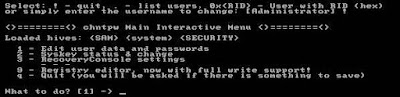
1. Tampilan pertama seperti ini

2. Tekan Enter,  tunggu loading beberapa saat

3. Pilih Partisi dimana windows terinstall, atau langsung Tekan Enter

4. Pilih  windows registry directory atau langsung Tekan Enter

5. Tekan Enter ( Pilihan :Pasword Reset )

6. Tekan Enter (User data and Password )

7. Tekan Enter (pilihan : administrator account)

8. Ketik   1  (angka satu ) kemudian tekan Enter  ( memilihclear / blank password )

9. Ketik  !  (tanda seru) kemudian tekan Enter (untuk keluar)

10. Ketik q  kemudian tekan Enter (untuk keluar)

11. Ketik y kemudian tekan Enter untuk menyimpan.

12. ketik n kemudian tekan enter untuk keluar

13. Keluarkan CD, tekan tombol Control + Alt + Del Untuk Rebootkomputer Account administrator saat ini sudah tidak memakai password (blank ).
Demikian semoga bermanfaat.

Create a password reset disk

If you're running Microsoft Windows XP Professional, you can create a password reset disk that—if you ever forget your password—you can use to log on to your computer. If you forget your password but don’t have a password reset disk, you'll have to reinstall Windows XP to use your computer.
To create a password reset disk
1.
Log on to your computer as an administrator.
2.
Click Start, and then click Control Panel.
Start menu with Control Panel selected


3.
Under Pick a category, click User Accounts.
Control Panel window with User Accounts selected


4.
In the User Accounts window, click the account name that you want to create a password reset disk for.
User Accounts window with account name selected


5.
Under the Related Tasks section, click Prevent a forgotten password.
User Accounts window with Prevent a forgotten password selected in Related Tasks area


6.
On the Welcome to the Forgotten Password Wizard page, click Next.
Welcome to the Forgotten Password Wizard page with Next selected


7.
Insert a floppy disk into your disk drive. If necessary, select the disk drive you want to use, and then click Next.
Note: If your computer doesn’t have a floppy disk drive, you won’t be able to use this wizard. If you cannot install a floppy disk drive on your computer or laptop, you could consider using aUSB-connected floppy disk drive.
Create a Password Reset Disk page with Next selected


8.
Type your password, and then click Next.
Current User Account Password page with password entered and Next selected


9.
After the Forgotten Password Wizard creates your password reset disk, click Next.
Creating Password Reset Disk page with Next selected


10.
Click Finish.
Completing the Forgotten Password Wizard page with Finish selected

Remove your password reset disk and store it in a safe, secure place. Storing your disk in a secure place is very important because anyone who uses the disk can access your computer without knowing your password. If you ever forget your password

Create a Password Reset Disk for computers

Note that this procedure requires one blank, formatted floppy disk. To create a password reset disk for your local user account:
  • Press CTRL+ALT+DELETE. The Windows Security dialog box appears.
  • Click Change Password . The Change Password dialog box appears.
  • In the Log on to box, click the local computer. For example, click Computer (this computer) .
  • Click Backup . The Forgotten Password Wizard starts.
  • On the "Welcome to the Forgotten Password Wizard" page, click Next .
  • Insert a blank, formatted disk in drive A, and then click Next .
  • In the Current user account password box, type your password, and then click Next . The Forgotten Password Wizard creates the disk.
  • When the progress bar reaches 100 percent complete, click Next , and then click Finish . The Forgotten Password Wizard quits and you return to the Change Password dialog box.
  • Remove, and then label the password reset disk. Store the disk in a safe place.
  • In the Change Password dialog box, click Cancel .
  • In the Windows Security dialog box, click Cancel.
If you forget your password, you can log on to the computer with a new password that you create by using the Password Reset Wizard and your password reset disk. To gain access to your local user account on a computer that is a member of a domain, or has been disconnected from a domain:
  • In the Welcome to Windows dialog box, press CTRL+ALT+DELETE.
  • In the Log On to Windows dialog box, type an incorrect password in the Password box, and then click OK 
  • In the Logon Failed dialog box that appears, click Reset . The Password Reset Wizard starts. The Password Reset Wizard lets you create a new password for your local user account.
  • On the "Welcome to the Password Reset Wizard" page, click Next .
  • Insert the password reset disk in drive A, and then click Next .
  • On the "Reset the User Account Password" page, type a new password in the Type a new password box.
  • Type the same password in the Type the password again to confirm box.
  • In the Type a new password hint box, type a hint that will help you remember the password if you forget it. NOTE : This hint is visible to anyone who attempts to log on to the computer by using your user account.
  • Click Next , and then click Finish . The Password Reset Wizard quits and you return to the Log On to Windows dialog box. The password reset disk is automatically updated with the new password information. You do not have to create a new password reset disk.
  • In the Log On to Windows dialog box, type your new password in the Password box.
  • In the Log on to box, click the local computer. For example, click Computer (this computer) , and then click OK . You are logged on to the local computer with your local account information.

Tips Lupa Password Admin Windows XP

Apabila kamu mamiliki password reset disk dan password hint, cobalah dulu menggunakannya utk menyelesaikan problem kamu. Bila itu juga tdk ad ato tdk membantu, maka gunakan beberapa solusi berikut:
  1. Gunakan windows XP recovery console secara manual utk membuka folder C:\Windows\System32\Config. Hapuslah file SAM di dlmnya. Langkah ini akan menghapus semua user account di dlm PC, termasuk administrator account, sehingga ketika kamu login lagi admin password akan kosong.
  2. Gunakan Winternals ERD commander utk membuat admin password. Download dari http://www.winternals.com/.
  3. Gunakan utility gratis utk mengubah semua password sistem operasi berbasis NTFS spt Windows NT, 2000, dan XP. Utility tsb akan membuat boot disk sendiri. Coba kamu buka http://home.eunet.no/~pnordahl/ntpasswd/bootdisk.html. Kamu harus mendownload file bd040116.zip (1,2MB), lalu mengekstrak file tsb. Setelah itu, jalankan utility tsb sampai muncul pesan utk memasukkan admin password baru dg mengetikkan net user administrator.

Cara Hack User Account Windows XP

Apabila password user windows xp lupa, berikut cara hack atau tips untuk mendapatkan password user account windows XP :
  • Pertama buka komputer anda.
  • Pada saat tampilan menu login, tekan Ctrl - Alt - Del dua kali.
  • Maka akan muncul login form.
  • Masukan user name di isi dengan nama : Administrator
  • Password tidak perlu diisi. Tekan enter.
  • Jika kita berhasil login, maka kemungkinan sukses tinggi sekali.
  • Jika sukses, maka status anda adalah sebagai Administrator. Tetapi biasanya (by default) Administrator tidak bisa akses document user - user.
  • Setelah buka command prompt.
  • Disitu ketik : AT 8:01 am /interactive cmd.exe
Note : 
8:01am diganti dengan waktu anda sekarang, tetapi ditambah 1-2 menit.
Perintah diatas akan memanggil program cmd.exe, namun ownernya adalah system. Dengan kata lain, kita dapat mengganti password semua user di komputer itu.


  • Setelah command prompt yang kita panggil lewat AT tadi muncul, maka disitu ketik command line ini : NET USER nama user passwordbaru
  • Sukses.
  • Sekarang coba log off, dan login ke account user yang kita rubah tadi dengan password baru yang anda save. Selesai.
Demikian terimakasih, semoga bisa membantu bagi teman2.

Jika cara tersebut tidak sukses, untung lebih mudah, anda download saja opchrack.
Download File

About Me

Followers

Home | Profile | Blogger | Template